CompTIA A+ Certification Exam (902) (220-902 Deutsch Version) - testinsides 220-902 Deutsch dumps

220-902 Deutsch real exams

Exam Code: 220-902-Deutsch

Exam Name: CompTIA A+ Certification Exam (902) (220-902 Deutsch Version)

Updated: Nov 21, 2026

Q & A: 475 Questions and Answers

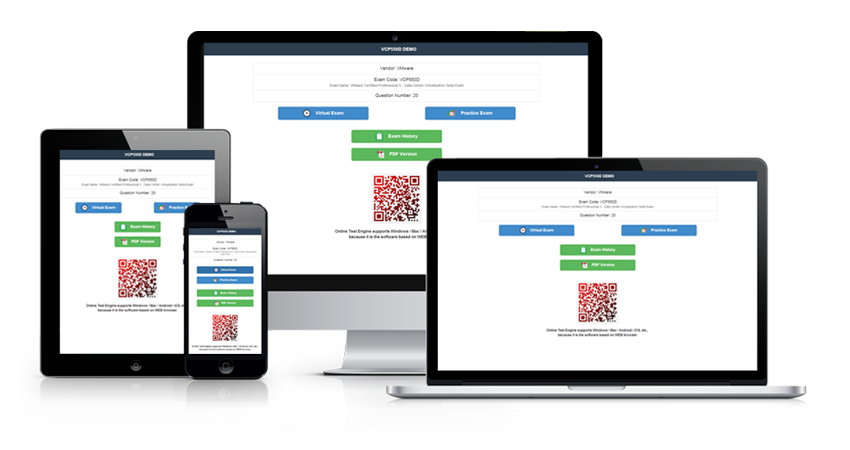
220-902 Deutsch Free Demo download

Already choose to buy "PDF"
Price: $69.99 

Are you still upset about how to surely pass 220-902 Deutsch - CompTIA A+ Certification Exam (902) (220-902 Deutsch Version) exams? Do you still search professional 220-902 Deutsch test dumps on the internet purposelessly? It is a good way for candidates to choose good test engine materials which can effectively help you consolidate of IT knowledge quickly. TestInsides test questions for 220-902 Deutsch - CompTIA A+ Certification Exam (902) (220-902 Deutsch Version) can help you have a good preparation for A+ exam effectively. If you buy our test dumps insides, you can not only pass exams but also enjoy a year of free update service. If you fail exams with 220-902 Deutsch test dumps sadly we will full refund to you surely. Also we provide you free demo download for your reference with our test engine for CompTIA A+ Certification Exam (902) (220-902 Deutsch Version).

Free Download CompTIA A+ Certification Exam (902) (220-902 Deutsch Version) testinsides dumps

After purchase, Instant Download: Upon successful payment, Our systems will automatically send the product you have purchased to your mailbox by email. (If not received within 12 hours, please contact us. Note: don't forget to check your spam.)

We offer one year service warranty for our products 220-902 Deutsch test dumps

Users can always get the latest and valid test PDF or test engine within one year after you purchase our CompTIA test questions for 220-902 Deutsch - CompTIA A+ Certification Exam (902) (220-902 Deutsch Version). Most companies just provide three months, ours is one year. Don't worry about the validity of our current version and want to wait for our updated version, it is unnecessary. No matter when you purchase our 220-902 Deutsch test dumps insides, we will notify you to download our latest CompTIA test questions while we release new version.

Our 220-902 Deutsch test dumps will be the best choice for your CompTIA exam

Most candidates have choice phobia disorder while you are facing so much information on the internet. Hereby we are sure that 220-902 Deutsch test dumps will be the best choice for your exam. We are a legal company which sells more than 6000+ exams materials that may contain most international IT certifications examinations. Especially for CompTIA exams, our passing rate of test questions for 220-902 Deutsch - CompTIA A+ Certification Exam (902) (220-902 Deutsch Version) is quite high and we always keep a steady increase. We are the leading position in this field because of our high-quality products and high pass rate.

Golden customer service: 7*24 online support and strict information safety system.

As is stated above, your money is guaranteed; hereby your information is safe. We have strict information safety system for every user. If you purchase our test questions for 220-902 Deutsch - CompTIA A+ Certification Exam (902) (220-902 Deutsch Version), your information is highly safe. Customer First, Service First, this is our eternal purpose. We are 7/24 online service support, we have strict criterion and appraise for every service staff. Candidates will enjoy our golden customer service both before and after purchasing our 220-902 Deutsch test dumps.

Stop hesitating and confusing, choosing our test questions for 220-902 Deutsch - CompTIA A+ Certification Exam (902) (220-902 Deutsch Version) will be a clever action. Opportunity waits for no man. Trust me, our 220-902 Deutsch test dumps will be helpful for your career.

CompTIA A+ Exam Certification Details:

Exam Code220-902
Exam Price$219 (USD)
Schedule ExamCompTIA Marketplace
Number of Questions90
Passing Score700 / 900
Exam NameCompTIA A+
Duration90 mins
Sample QuestionsCompTIA A+ Sample Questions

Reference: https://certification.comptia.org/certifications/a

Why use TestInsides to study

TestInsides is a central hub for all people looking for information and resources regarding certification exams we create an extremely accurate and loyal web and mobile exam simulator. TestInsides is providing a set of 220-902 exam dumps exam questions with the answers. 220-902 practice exams have been built to imitate the real exam.

Who should take the exam

if you have the following prerequisite and required skills then you should take this exam for getting CompTIA A+ certificate.

  • Apply troubleshooting skills
  • Understand the basics of networking and security/forensics
  • Properly and safely diagnose, resolve and document common hardware and software issues
  • Provide appropriate customer support
  • Assemble components based on customer requirements
  • Install, configure and maintain devices, PCs, and software for end users
  • Understand the basics of virtualization, desktop imaging, and deployment.

Your money is guaranteed. No Pass No Pay, No Pass Full Refund

Many candidates may doubt about if our 220-902 Deutsch test dumps insides is valid and helpful. You may be afraid of wasting money on test engine. We guarantee that our test questions for 220-902 Deutsch - CompTIA A+ Certification Exam (902) (220-902 Deutsch Version) can actually help you clear exams. 98% of candidates will pass exams surely. We hereby promise that No Pass No Pay, No Pass Full Refund. If users fail exams with our test questions for 220-902 Deutsch - CompTIA A+ Certification Exam (902) (220-902 Deutsch Version) you don't need to pay any money to us. Once our test engine can't assist clear exams certainly we will full refund to you unconditionally.

CompTIA 220-902 Exam Syllabus Topics:

TopicDetails
Windows Operating Systems 29%
Compare and contrast various features and requirements of Microsoft Operating Systems (Windows Vista, Windows 7, Windows 8, Windows 8.1)1.Features:
  • 32-bit vs. 64-bit
  • Aero, gadgets, user account control,BitLocker, shadow copy, system restore, ready boost, sidebar, compatibility mode, virtual XP mode, easy transfer, administrative tools, defender, Windows firewall, security center, event viewer, file structure and paths, category view vs. classic view
  • Side-by-side apps, Metro UI, Pinning, One Drive, Windows store, multimonitor task bars, charms, Start Screen, PowerShell, Live sign in, Action Center
2. Upgrade paths – differences between in place upgrades, compatibility tools, Windows upgrade OS advisor
Given a scenario, install Windows PC operating systems using appropriate methods.1.Boot methods
  • USB
  • CD-ROM
  • DVD
  • PXE
  • Solid state/flash drives
  • Netboot
  • External/hot swappable drive
  • Internal hard drive (partition)
2.Type of installations
  • Unattended installation
  • Upgrade
  • Clean install
  • Repair installation
  • Multiboot
  • Remote network installation
  • Image deployment
  • Recovery partition
  • Refresh/restore

3.Partitioning

  • Dynamic
  • Basic
  • Primary
  • Extended
  • Logical
  • GPT
4.File system types/formatting
  • exFAT
  • FAT32
  • NTFS
  • CDFS
  • NFS
  • ext3, ext4
  • Quick format vs. full format
5. Load alternate third-party drivers when necessary
6.Workgroup vs. domain setup
7. Time/date/region/language settings
8. Driver installation, software and Windows updates
9.Factory recovery partition
10. Properly formatted boot drive with the correct partitions/format
Given a scenario, apply appropriate Microsoft command line tools.1.TASKKILL
2. BOOTREC
3. SHUTDOWN
4.TASKLIST
5. MD
6. RD
7. CD
8. DEL
9. FORMAT
10.COPY
11.XCOPY
12.ROBOCOPY
13.DISKPART
14.SFC
15.CHKDSK
16.GPUPDATE
17.GPRESULT
18. DIR
19.EXIT
20.HELP
21.EXPAND
22. [command name] /?
23. Commands available with standard privileges vs. administrative privileges
Given a scenario, use appropriate Microsoft operating system features and tools.1.Administrative
  • Computer management
  • Device manager
  • Local users and groups
  • Local security policy
  • Performance monitor
  • Services
  • System configuration
  • Task scheduler
  • Component services
  • Data sources
  • Print management
  • Windows memory diagnostics
  • Windows firewall
  • Advanced security

2.MSCONFIG

  • General
  • Boot
  • Services
  • Startup
  • Tools

3.Task Manager

  • Applications
  • Processes
  • Performance
  • Networking
  • Users
4.Disk management
  • Drive status
  • Mounting
  • Initializing
  • Extending partitions
  • Splitting partitions
  • Shrink partitions
  • Assigning/changing drive letters
  • Adding drives
  • Adding arrays
  • Storage spaces
5.Other
  • User State Migration tool (USMT)
  • Windows Easy Transfer
  • Windows Upgrade Advisor
6.System utilities
  • REGEDIT
  • COMMAND
  • SERVICES.MSC
  • MMC
  • MSTSC
  • NOTEPAD
  • EXPLORER
  • MSINFO32
  • DXDIAG
  • DEFRAG
  • System restore
  • Windows Update


Given a scenario, use Windows Control Panel utilities.1.Internet options
  • Connections
  • Security
  • General
  • Privacy
  • Programs
  • Advanced
2.Display/display settings
  • Resolution
  • Color depth
  • Refresh rate
3.User accounts
4.Folder options
  • View hidden files
  • Hide extensions
  • General options
  • View options
5.System
  • Performance (virtual memory)
  • Remote settings
  • System protection
6.Windows firewall
7.Power options
  • Hibernate
  • Power plans
  • Sleep/suspend
  • Standby
8.Programs and features
9.HomeGroup
10.Devices and printers
11.Sound
12.Troubleshooting
13. Network and Sharing Center
14.Device Manager
Given a scenario, install and configure Windows networking on a client/desktop.1.HomeGroup vs. WorkGroup
2.Domain setup
3. Network shares/administrative shares/mapping drives
4. Printer sharing vs. network printer mapping
5.Establish networking connections
  • VPN
  • Dial-ups
  • Wireless
  • Wired
  • WWAN (Cellular)
6.Proxy settings
7.Remote Desktop Connection
8.Remote Assistance
9.Home vs. work vs. public network settings
10.Firewall settings
  • Exceptions
  • Configuration
  • Enabling/disabling Windows firewall
11. Configuring an alternative IP address in Windows
  • IP addressing
  • Subnet mask
  • DNS
  • Gateway
12.Network card properties
  • Half duplex/full duplex/auto
  • Speed
  • Wake-on-LAN
  • QoS
  • BIOS (on-board NIC)
Perform common preventive maintenance procedures using the appropriate Windows OS tools.1.Best practices
  • Scheduled backups
  • Scheduled disk maintenance
  • Windows updates
  • Patch management
  • Driver/firmware updates
  • Antivirus/Anti-malware updates
2.Tools
  • Backup
  • System restore
  • Recovery image
  • Disk maintenance utilities
Other Operating Systems and Technologies 12%
Identify common features and functionality of the Mac OS and Linux operating systems.1.Best practices
  • Scheduled backups
  • Scheduled disk maintenance
  • System updates/App Store
  • Patch management
  • Driver/firmware updates
  • Antivirus/anti-malware updates
2. Tools
  • Backup/Time Machine
  • Restore/snapshot
  • Image recovery
  • Disk maintenance utilities
  • Shell/Terminal
  • Screen sharing
  • Force Quit
3. Features
  • Multiple desktops/Mission Control
  • Key Chain
  • Spot Light
  • iCloud
  • Gestures
  • Finder
  • Remote Disc
  • Dock
  • Boot Camp
4.Basic Linux commands
  • ls
  • grep
  • cd
  • shutdown
  • pwd vs. passwd
  • mv
  • cp
  • rm
  • chmod
  • chown
  • iwconfig/ifconfig
  • ps
  • su/sudo
  • apt-get
  • vi
  • dd

Given a scenario, set up and use client-side virtualization.1.Purpose of virtual machines
2.Resource requirements
3.Emulator requirements
4.Security requirements
5.Network requirements
6.Hypervisor
Identify basic cloud concepts.1.SaaS
2.IaaS
3.PaaS
4.Public vs. Private vs. Hybrid vs. Community
5.Rapid Elasticity
6.On-demand
7.Resource pooling
8.Measured service
Summarize the properties and purpose of services provided by networked hosts.1. Server roles
  • Web server
  • File server
  • Print server
  • DHCP server
  • DNS server
  • Proxy server
  • Mail server
  • Authentication server

2.Internet appliance

  • UTM
  • IDS
  • IPS

3. Legacy/embedded systems

Identify basic features of mobile operating systems.1.Android vs. iOS vs. Windows
  • Open source vs. closed source/vendor specific
  • App source (Google Play Store, App Store, and Store)
  • Screen orientation (accelerometer/gyroscope)
  • Screen calibration
  • GPS and geotracking
  • WiFi calling
  • Launcher/GUI
  • Virtual assistant
  • SDK/APK
  • Emergency notification
  • Mobile payment service
Install and configure basic mobile device network connectivity and email.1. Wireless/cellular data network (enable/disable)
  • Hotspot
  • Tethering
  • Airplane mode

2.Bluetooth

  • Enable Bluetooth
  • Enable pairing
  • Find device for pairing
  • Enter appropriate pin code
  • Test connectivity

3.Corporate and ISP email configuration

  • POP3
  • IMAP
  • Port and SSL settings
  • Exchange, S/MIME

4. Integrated commercial provider email configuration

  • Google/Inbox
  • Yahoo
  • Outlook.com
  • iCloud

5. PRI updates/PRL updates/ Baseband updates
6.Radio firmware
7. IMEI vs. IMSI
8.VPN

Summarize methods and data related to mobile device synchronization.1.Types of data to synchronize
  • Contacts
  • Programs
  • Email
  • Pictures
  • Music
  • Videos
  • Calendar
  • Bookmark
  • Documents
  • Location data
  • Social media data
  • eBooks
2.Synchronization methods
  • Synchronize to the Cloud
  • Synchronize to the Desktop
3. Mutual authentication for multiple services (SSO)
4. Software requirements to install the application on the PC
5. Connection types to enable synchronization

Security 22%
Identify common security threats and vulnerabilities.1.Malware
  • Spyware
  • Viruses
  • Worms
  • Trojans
  • Rootkits
  • Ransomware

2.Phishing
3.Spear phishing
4.Spoofing
5. Social engineering
6. Shoulder surfing
7. Zero-day attack
8.Zombie/botnet
9. Brute forcing
10. Dictionary attacks
11. Non-compliant systems
12. Violations of security best practices
13. Tailgating
14.Man-in-the-middle

Compare and contrast common prevention methods.1.Physical security
  • Lock doors
  • Mantrap
  • Cable locks
  • Securing physical documents/ passwords/shredding
  • Biometrics
  • ID badges
  • Key fobs
  • RFID badge
  • Smart card
  • Tokens
  • Privacy filters
  • Entry control roster
2.Digital security
  • Antivirus/Anti-malware
  • Firewalls
  • User authentication/strong passwords
  • Multifactor authentication
  • Directory permissions
  • VPN
  • DLP
  • Disabling ports
  • Access control lists
  • Smart card
  • Email filtering
  • Trusted/untrusted software sources
3.User education/AUP
4.Principle of least privilege

Compare and contrast differences of basic Windows OS security settings.1.User and groups
  • Administrator
  • Power user
  • Guest
  • Standard user

2.NTFS vs. Share permissions

  • Allow vs. deny
  • Moving vs. copying folders and files
  • File attributes

3.Shared files and folders

  • Administrative shares vs. local shares
  • Permission propagation
  • Inheritance

4.System files and folders
5.User authentication

  • Single sign-on

6.Run as administrator vs. standard user
7.BitLocker
8.BitLocker-To-Go
9.EFS

Given a scenario, deploy and enforce security best practices to secure a workstation.1.Password best practices
  • Setting strong passwords
  • Password expiration
  • Changing default usernames/passwords
  • Screensaver required password
  • BIOS/UEFI passwords
  • Requiring passwords

2.Account management

  • Restricting user permissions
  • Login time restrictions
  • Disabling guest account
  • Failed attempts lockout
  • Timeout/screen lock

3.Disable autorun
4.Data encryption
5.Patch/update management

Compare and contrast various methods for securing mobile devices.1.Screen locks
  • Fingerprint lock
  • Face lock
  • Swipe lock
  • Passcode lock

2. Remote wipes
3.Locator applications
4.Remote backup applications
5.Failed login attempt restrictions
6.Antivirus/anti-malware
7.Patching/OS updates
8.Biometric authentication
9. Full device encryption
10.Multifactor authentication
11.Authenticator applications
12.Trusted sources vs. untrusted sources
13.Firewalls
14.Policies and procedures

  • BYOD vs. corporate owned
  • Profile security requirements
Given a scenario, use appropriate data destruction and disposal methods.1.Physical destruction
  • Shredder
  • Drill/hammer
  • Electromagnetic (Degaussing)
  • Incineration
  • Certificate of destruction

2.Recycling or repurposing best practices

  • Low level format vs. standard format
  • Overwrite
  • Drive wipe
Given a scenario, secure SOHO wireless and wired networks.1.Wireless specific
  • Changing default SSID
  • Setting encryption
  • Disabling SSID broadcast
  • Antenna and access point placement
  • Radio power levels
  • WPS
2.Change default usernames and passwords
3.Enable MAC filtering
4.Assign static IP addresses
5. Firewall settings
6.Port forwarding/mapping
7.Disabling ports
8.Content filtering/parental controls
9.Update firmware
10.Physical security
Software Troubleshooting 24%
Given a scenario, troubleshoot PC operating system problems with appropriate tools.1.Common symptoms
  • Proprietary crash screens (BSOD/pinwheel)
  • Failure to boot
  • Improper shutdown
  • Spontaneous shutdown/restart
  • Device fails to start/detected
  • Missing DLL message
  • Services fails to start
  • Compatibility error
  • Slow system performance
  • Boots to safe mode
  • File fails to open
  • Missing NTLDR
  • Missing boot configuration data
  • Missing operating system
  • Missing graphical interface
  • Missing GRUB/LILO
  • Kernel panic
  • Graphical Interface fails to load
  • Multiple monitor misalignment/orientation
2. Tools
  • BIOS/UEFI
  • SFC
  • Logs
  • System Recovery Options
  • Repair disks
  • Pre-installation environments
  • MSCONFIG
  • DEFRAG
  • REGSRV32
  • REGEDIT
  • Event viewer
  • Safe mode
  • Command prompt
  • Uninstall/reinstall/repair

Given a scenario, troubleshoot common PC security issues with appropriate tools and best practices.1.Common symptoms
  • Pop-ups
  • Browser redirection
  • Security alerts
  • Slow performance
  • Internet connectivity issues
  • PC/OS lock up
  • Application crash
  • OS updates failures
  • Rogue antivirus
  • Spam
  • Renamed system files
  • Files disappearing
  • File permission changes
  • Hijacked email
  • Responses from users regarding email
  • Automated replies from unknown sent email
  • Access denied
  • Invalid certificate (trusted root CA)
2. Tools
  • Antivirus software
  • Anti-malware software
  • Recovery console
  • Terminal
  • System restore/Snapshot
  • Pre-installation environments
  • Event viewer
  • Refresh/restore
  • MSCONFIG/Safe boot
3. Best practice procedure for malware removal
  • Identify malware symptoms
  • Quarantine infected system
  • Disable system restore (in Windows)
  • Remediate infected systems
  • Update anti-malware software
  • Scan and removal techniques (safe mode, pre-installation environment)
  • Schedule scans and run updates
  • Enable system restore and create restore point (in Windows)
  • Educate end user

Given a scenario, troubleshoot common mobile OS and application issues with appropriate tools.1.Common symptoms
  • Dim display
  • Intermittent wireless
  • No wireless connectivity
  • No Bluetooth connectivity
  • Cannot broadcast to external monitor
  • Touchscreen non-responsive
  • Apps not loading
  • Slow performance
  • Unable to decrypt email
  • Extremely short battery life
  • Overheating
  • Frozen system
  • No sound from speakers
  • Inaccurate touch screen response
  • System lockout
2.Tools
  • Hard reset
  • Soft reset
  • Close running applications
  • Reset to factory default
  • Adjust configurations/settings
  • Uninstall/reinstall apps
  • Force stop

Given a scenario, troubleshoot common mobile OS and application security issues with appropriate tools.1.Common symptoms
  • Signal drop/weak signal
  • Power drain
  • Slow data speeds
  • Unintended WiFi connection
  • Unintended Bluetooth pairing
  • Leaked personal files/data
  • Data transmission overlimit
  • Unauthorized account access
  • Unauthorized root access
  • Unauthorized location tracking
  • Unauthorized camera/ microphone activation
  • High resource utilization
2.Tools
  • Anti-malware
  • App scanner
  • Factory reset/clean install
  • Uninstall/reinstall apps
  • WiFi analyzer
  • Force stop
  • Cell tower analyzer
  • Backup/restore
  • iTunes/iCloud/Apple Configurator
  • Google Sync
  • One Drive

Operational Procedures 13%
Given a scenario, use appropriate safety procedures.1.Equipment grounding
2.Proper component handling and storage
  • Antistatic bags
  • ESD straps
  • ESD mats
  • Self-grounding

3.Toxic waste handling

  • Batteries
  • Toner
  • CRT

4. Personal safety

  • Disconnect power before repairing PC
  • Remove jewelry
  • Lifting techniques
  • Weight limitations
  • Electrical fire safety
  • Cable management
  • Safety goggles
  • Air filter mask
5. Compliance with local government regulations
Given a scenario with potential environmental impacts, apply the appropriate controls.1. MSDS documentation for handling and disposal
2. Temperature, humidity level awareness and proper ventilation
3.Power surges, brownouts, blackouts
  • Battery backup
  • Surge suppressor

4.Protection from airborne particles

  • Enclosures
  • Air filters/mask

5.Dust and debris

  • Compressed air
  • Vacuums

6. Compliance to local government regulations

Summarize the process of addressing prohibited content/ activity, and explain privacy, licensing and policy concepts.1.Incident Response
  • First response
  • Identify
  • Report through proper channels
  • Data/device preservation
  • Use of documentation/ documentation changes
  • Chain of custody
  • Tracking of evidence/ documenting process
2.Licensing/DRM/EULA
  • Open source vs. commercial license
  • Personal license vs. enterprise licenses
3.Personally Identifiable Information
4. Follow corporate end-user policies and security best practices
Demonstrate proper communication techniques and professionalism.1. Use proper language – avoid jargon, acronyms and slang when applicable
2. Maintain a positive attitude/ project confidence
3. Actively listen (taking notes) and avoid interrupting the customer
4.Be culturally sensitive
  • Use appropriate professionaltitles, when applicable

5.Be on time (if late contact the customer)
6.Avoid distractions

  • Personal calls
  • Texting/social media sites
  • Talking to co-workers while interacting with customers
  • Personal interruptions
7.Dealing with difficult customer or situation
  • Do not argue with customers and/or be defensive
  • Avoid dismissing customer problems
  • Avoid being judgmental
  • Clarify customer statements (ask open-ended questions to narrow the scope of the problem, restate the issue or question to verify understanding)
  • Do not disclose experiences via social media outlets
8. Set and meet expectations/timeline and communicate status with the customer
  • Offer different repair/replacement options if applicable
  • Provide proper documentatio on the services provided
  • Follow up with customer/user at a later date to verify satisfaction
9. Deal appropriately with customers confidential and private materials
  • Located on a computer,desktop, printer, etc

Given a scenario, explain the troubleshooting theory1. Always consider corporate policies, procedures and impacts before implementing changes.
  • Identify the problem
  • Question the user and identify user changes to computer and perform backups before making changes
  • Establish a theory of probable cause (question the obvious)
  • If necessary, conduct external or internal research based on symptoms
  • Test the theory to determine cause
  • Once theory is confirmed, determine next steps to resolve problem
  • If theory is not confirmed, re-establish new theory or escalate
  • Establish a plan of action to resolve the problem and implement the solution
  • Verify full system functionality and if applicable implement preventive measures
  • Document findings, actions and outcomes

No help, Full refund!

No help, Full refund!

TestInsides confidently stands behind all its offerings by giving Unconditional "No help, Full refund" Guarantee. Since the time our operations started we have never seen people report failure in the CompTIA 220-902 Deutsch exam after using our products. With this feedback we can assure you of the benefits that you will get from our products and the high probability of clearing the 220-902 Deutsch exam.

We still understand the effort, time, and money you will invest in preparing for your certification exam, which makes failure in the CompTIA 220-902 Deutsch exam really painful and disappointing. Although we cannot reduce your pain and disappointment but we can certainly share with you the financial loss.

This means that if due to any reason you are not able to pass the 220-902 Deutsch actual exam even after using our product, we will reimburse the full amount you spent on our products. you just need to mail us your score report along with your account information to address listed below within 7 days after your unqualified certificate came out.

What Clients Say About Us

LEAVE A REPLY

Your email address will not be published. Required fields are marked *

Why Choose TestInsides

Quality and Value

TestInsides Practice Exams are written to the highest standards of technical accuracy, using only certified subject matter experts and published authors for development - no all vce.

Tested and Approved

We are committed to the process of vendor and third party approvals. We believe professionals and executives alike deserve the confidence of quality coverage these authorizations provide.

Easy to Pass

If you prepare for the exams using our TestInsides testing engine, It is easy to succeed for all certifications in the first attempt. You don't have to deal with all dumps or any free torrent / rapidshare all stuff.

Try Before Buy

TestInsides offers free demo of each product. You can check out the interface, question quality and usability of our practice exams before you decide to buy.

Our Clients

amazon
centurylink
earthlink
marriot
vodafone
comcast
bofa
charter
vodafone
xfinity
timewarner
verizon